Most "how to use AI for studying" content treats every chatbot as interchangeable — paste text in, get notes out. That's a waste of what makes Claude specifically useful. Claude's actual advantages for studying are structural: a workspace that holds a whole course's worth of context, a context window long enough to swallow a full lecture transcript or textbook chapter without chunking it, an interface (Artifacts) that turns generated study material into something reviewable rather than a wall of chat text, and a default tendency to explain reasoning rather than just hand you an answer.
This is a guide to using those four things well. It assumes you already know Claude exists and want to use it better, not a pitch for why you should switch from something else — for that comparison, see the full ChatGPT vs Claude vs Gemini comparison, which covers the tradeoffs across all three tools task by task.
Set Up Claude Projects Before You Set Up Anything Else
Claude Projects is the single most underused feature by students who otherwise use Claude constantly. A Project is a persistent workspace with its own set of uploaded files and its own custom instructions, separate from your regular chat history. Every conversation inside that Project can see everything you've uploaded to it, without you re-uploading or re-explaining context each time.
For a semester of coursework, that means one Project per course, not one long undifferentiated chat history:
- Upload the syllabus first. This gives every future conversation in the Project access to the course structure, grading breakdown, and topic sequence without you retyping it.
- Add lecture slides and reading PDFs as you go. You don't need to upload everything on day one — add materials to the Project as the course progresses, and older conversations in that Project can still reference newly added files.
- Write custom instructions once. The Project-level system prompt is where you set standing preferences: "always format notes as Cornell-style with a cue column," "flag anything that contradicts an earlier reading," "use terminology consistent with [textbook name]." You write this once and it applies to every conversation in that Project, instead of re-specifying formatting in every single prompt.
The practical payoff is that by week 10, asking "how does this week's reading connect to what we covered on [earlier topic]" actually works, because Claude has the accumulated course context in the Project rather than a single isolated chat with no memory of week 3.
One caveat: Projects are per-course organization, not a substitute for your own note storage. Treat the Project as Claude's working memory for that course, and keep your actual finished notes somewhere durable — a notes app, a shared drive, or a dedicated tool built for it.
Turning Long Transcripts and PDF Chapters Into Notes
This is where Claude's long context window earns its keep. A one-hour lecture transcript or a 40-page textbook chapter doesn't need to be split into chunks the way it would with a shorter-context tool — you can paste or upload the whole thing and ask for notes on the complete material in one pass. That matters because chunked summarization loses the connections between the start and end of a document; Claude working on the whole thing at once can flag that the professor's conclusion in minute 55 directly answers a question raised in minute 8.
A prompt that works better than "summarize this" is one that tells Claude what kind of document it's looking at and what structure you want out:
This is a full transcript of a [subject] lecture on [topic]. Produce
structured notes with:
1. A short summary of the lecture's central argument or claim (2-3 sentences)
2. Section headers matching the actual structure of the lecture, not
   generic ones
3. Under each section, the key claims, definitions, and any worked
   examples, in the professor's own terminology
4. A "connections" note at the end, flagging anywhere this lecture
   builds on, contradicts, or revises something from earlier in the
   course (use the Project files for context if this course has a
   Project set up)
5. 3-5 questions I should be able to answer if I actually understood
   this material
The same pattern works for a PDF textbook chapter — swap "lecture transcript" for "textbook chapter" and ask it to preserve the chapter's own subheadings rather than inventing new structure. The instruction to use the source's own terminology matters more than it sounds: a generic summary that swaps in Claude's own phrasing for the professor's or author's is often harder to match back to your actual exam, which will use the original language.
For material that's genuinely dense — a proof-heavy math lecture, a legal case with layered arguments — it's worth a second, separate pass asking specifically "what's the one part of this that a student is most likely to misunderstand, and why." Claude tends to be good at anticipating the specific confusion rather than just restating the correct version, which is a different and often more useful output than a summary.
Using Artifacts to Generate Reviewable Study Material
Artifacts is the feature that makes Claude's output usable as a study tool rather than something you read once in a chat window and lose. When you ask for something structured — a study guide, a table, a flashcard set, a practice problem set with an answer key — Claude can generate it as a standalone Artifact: a separate panel you can view, edit, and export, instead of a message buried in scroll history.
Practical ways to use it:
- Study guides as living documents. Ask for a study guide as an Artifact, then keep coming back to the same conversation to have Claude revise sections as you review — tightening a section you already know cold, expanding one you keep getting wrong. Because it's an Artifact rather than a chat message, you're editing one document instead of accumulating five separate summaries across five separate chat replies.
- Flashcard sets in a structured format. Ask Claude to generate flashcards as a table Artifact (front/back columns) rather than as inline text. It's easier to scan, easier to spot gaps in coverage, and easier to copy into an actual spaced-repetition tool afterward. Specify the format you actually need — cloze deletion, basic Q&A, image-occlusion style — the same way you would with any AI flashcard workflow; see our breakdown of flashcards that actually stick for what makes a flashcard worth reviewing in the first place.
- Self-quizzing documents. Ask for a practice quiz as an Artifact with the answer key hidden below a "reveal" section or in a separate part of the document, so you can genuinely test yourself before checking rather than seeing the answer as you read the question.
The general principle: anything you'd want to revisit, edit, or reference more than once belongs in an Artifact, not in the flow of chat. If you're only asking a one-off question, a normal chat reply is fine — Artifacts earn their overhead on anything you'll actually use as a document.
When Claude's Socratic Style Beats a Straight-Answer Tool
Claude has a real, consistent tendency to explain why rather than just deliver what — and to push back when a question contains a wrong assumption rather than politely answering the literal question as asked. That's a genuine tradeoff, not a strict advantage: sometimes you want the fast, direct answer, and a tool optimized for structured output will get you there faster.
But for building conceptual understanding rather than just getting through an assignment, the Socratic tendency does real work:
- Ask it to explain a concept at three levels (high school, undergraduate, graduate) and watch what actually changes between explanations — not just simpler words, but which parts of the mechanism get included or dropped. That's often more instructive than any single explanation on its own.
- Ask "what's wrong with this argument" instead of "is this argument correct." Claude is more likely to walk through the actual reasoning failure — where an inference doesn't follow, where a premise is doing more work than it can support — rather than a flat right/wrong verdict.
- Deliberately feed it a flawed version of your own understanding and ask it to correct you, rather than asking it to explain the concept fresh. This surfaces the specific place your mental model breaks, which is usually more useful than a generic explanation you'd nod along to without noticing you didn't actually have that part right.
- Resist the urge to ask for the final answer first. If you're using Claude to work through a problem set, asking "walk me through how to approach this" before asking "what's the answer" preserves the part of the exchange that's actually building the skill you're being tested on.
This mode is a poor fit for tasks with a genuinely correct, checkable answer where you just need the answer — formula lookups, syntax questions, factual recall. It's a strong fit for anything where the point is developing your own reasoning, which is most of what actually shows up on an exam that isn't pure recall.
Putting It Together: A Simple Weekly Workflow
A workflow that uses all four pieces without becoming its own chore:
- Once per course, at the start of the semester: create a Claude Project, upload the syllabus, set the custom instructions for note format.
- After each lecture or reading: paste the transcript or upload the PDF into that Project's chat, run the structured-notes prompt above, and save the output as an Artifact.
- Before each exam or problem set deadline: ask Claude to generate a flashcard-table Artifact and a self-quiz Artifact from the accumulated notes in that Project.
- When something isn't clicking: switch out of note-generation mode and into the Socratic mode — ask it to explain your own flawed version of the concept back to you, rather than asking for a fresh explanation.
None of this requires a paid plan to start, though message limits on the free tier will bite on longer documents over time — see the complete AI study notes guide for a broader look at how AI note-taking fits into a study system beyond any single tool, and how to combine it with methods like spaced repetition and active recall that make the notes themselves worth having.
Claude isn't the right tool for everything — structured flashcard export and reliable format-following still lean toward ChatGPT for a lot of STEM workflows, as the full comparison lays out. But for the specific job of turning long, dense material into notes you actually understand rather than notes you merely possess, it's worth setting up properly rather than using like a generic chatbot.
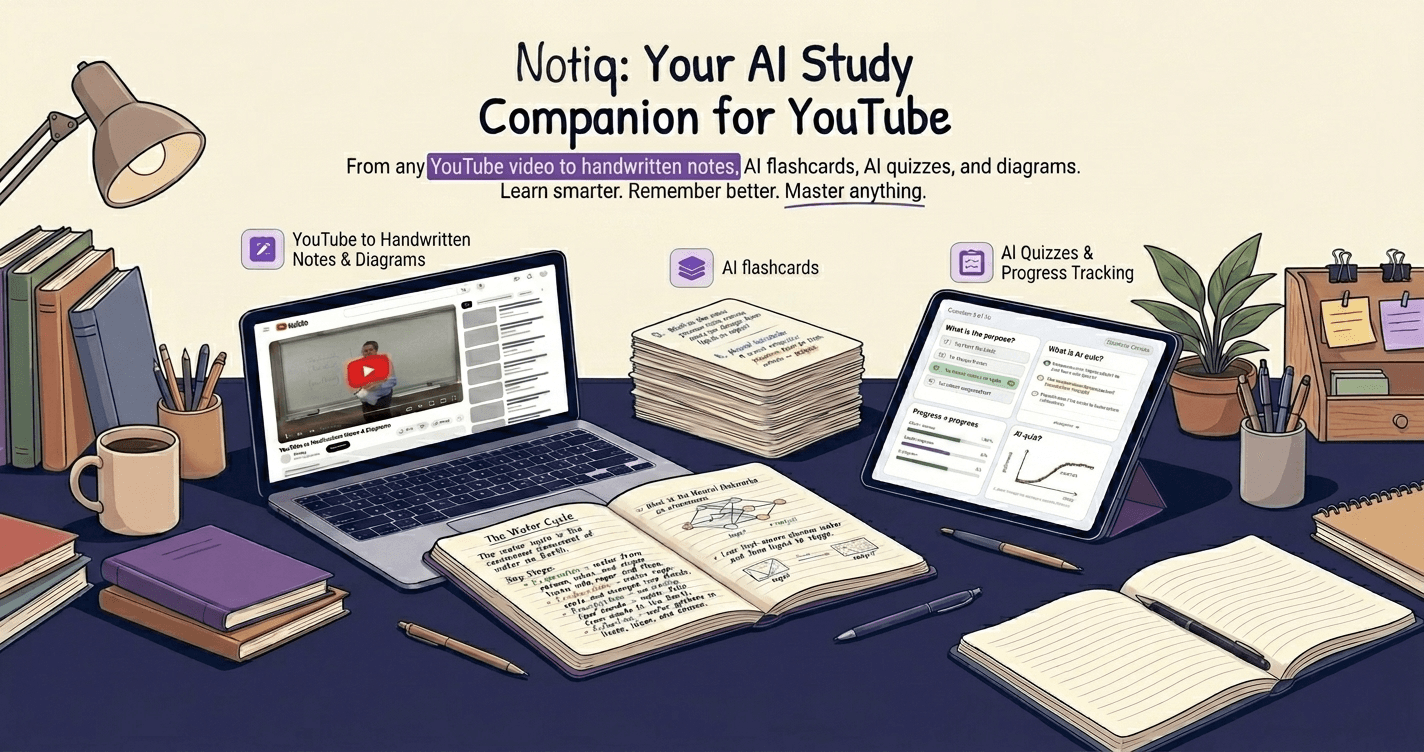
If you'd rather skip the prompt-engineering step entirely, Notiq turns a YouTube lecture straight into structured notes, flashcards, and exam questions — no Project setup or custom instructions required. Try it free.